
A few months ago, I started exploring how to use Alfred so I could quickly and efficiently navigate the dashboards of our WooCommerce customer websites.
Early in the summer, I had a prototype that I showed off at our WooTrip, but it wasn’t fully complete. The workflow worked great, but it was a pain to add your own custom shortcut.
I’ve fixed that issue and today I’d like to introduce you to WordPress Quick Navigate
How Does it Work?
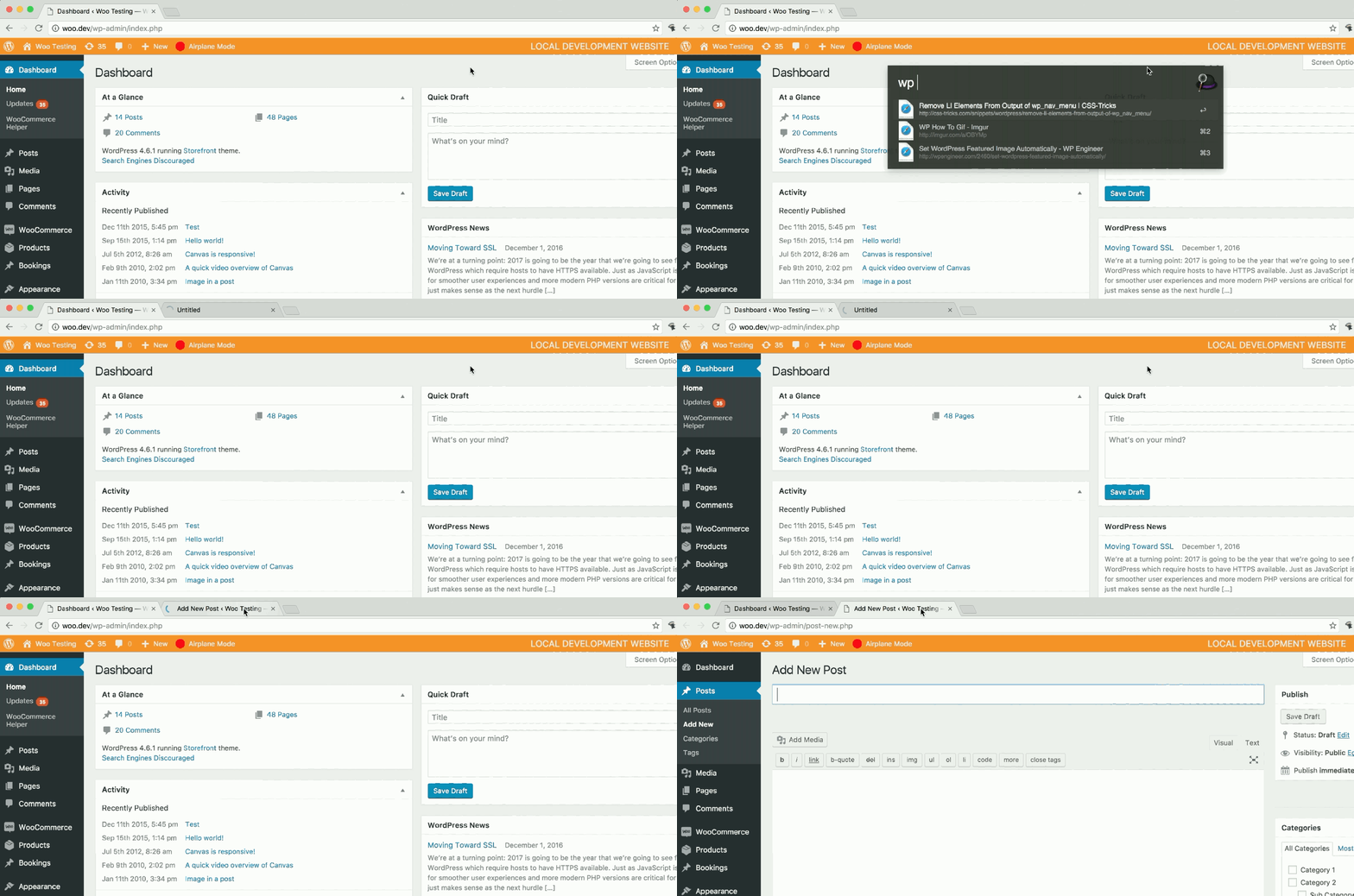
From any WordPress dashboard setting screen, open Alfred and type wp {query}
For example:

Will open a new tab and load the plugins page.
I made it open in a new tab, because sometimes I log into a site and want to open up the WooCommerce Settings, Plugins, and Orders all at the same time.
This makes navigating super slow websites a bit less frustrating.
Since the workflow grabs the current URL, it will work on all WordPress websites with either Chrome or Safari browsers.
Customize to work for me
This workflow is really basic, so there are not many settings, but you can configure a few things.
Trigger Phrase
Right now it’s set to wp and this can be changed to anything
Short Links
Building every link is impossible, so you can add the ones that you utilize the most.
Each link needs three pieces of information:
– trigger word (aka {query}), which is the title
– subtile title (this isn’t required
– URL to navigate to
Here’s how to add a new link to create a new post.
- Find what URL is. We need everything after .com / .blog, including wp-admin
- Click on the (+) icon to add a new variable

- Enter Title, Subtitle, and Arg (link)

- Lastly Save
*No need to add the orange icon, it will be loaded for all variables since my favorite color is orange 🙂
You can download the workflow here: wordpress-quick-navigate

